What Is a Checksum Error? A Complete Guide to Causes, Types, and Solutions
A checksum error is a message that tells you that data has changed, become corrupted, or failed an integrity check somewhere between its original state and the point where it is being read or used.
You may encounter a checksum error when downloading a file, installing software, extracting a ZIP archive, transferring data between devices, reading a storage drive, updating firmware, or starting a computer. The message can look technical and confusing, but the basic idea is relatively simple: the computer calculated a value for the data and found that it did not match the value it expected.
Checksum errors are primarily about data integrity. They do not necessarily mean that your computer or storage device is permanently damaged. Sometimes the problem is simply an incomplete download or a corrupted archive. In other cases, however, repeated checksum errors can be an early indication of failing hardware or an unreliable connection.
Understanding what a checksum does, why errors occur, and how to troubleshoot them can help you determine whether you are dealing with a temporary file problem or something more serious.
What Is a Checksum?
A checksum is a value calculated from a set of data using a mathematical algorithm.
Imagine that you download a large software file from a website. The publisher can calculate a checksum for that file before making it available. When you download the file, your computer can calculate the checksum again.
If both values match, there is strong evidence that the file you received is identical to the file that was originally checked.
If the values are different, something has changed.
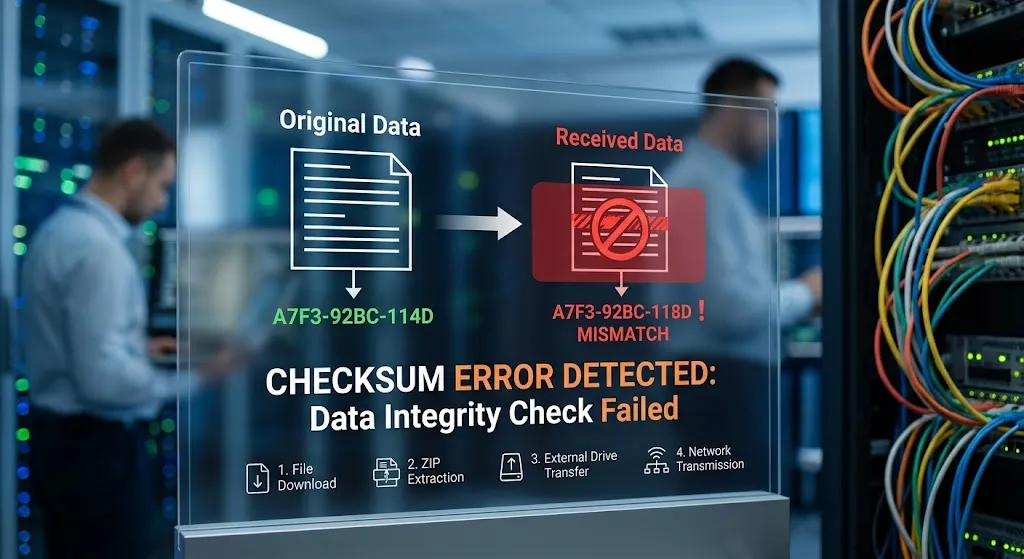
For example, imagine a file has the following checksum:
A7F3-92BC-114D
After downloading the file, your computer calculates:
A7F3-92BC-118D
The values are different, so the file does not match the expected data.
This is what a checksum error indicates.
A checksum does not necessarily tell you exactly what went wrong. It tells you that the data failed an integrity check.
How Does a Checksum Work?
The exact process depends on the algorithm being used, but the general concept is straightforward.
A program takes the contents of a file or block of data and processes them through a mathematical calculation. The resulting value is the checksum.
The original sender can provide that value alongside the data.
The receiver then performs the same calculation on the data it received.
The process looks roughly like this:
Original data → checksum calculation → expected checksum
Then:
Received data → checksum calculation → calculated checksum
The two values are compared.
If the values match
The data has passed the integrity check.
If the values do not match
The data has failed the integrity check, resulting in a checksum error.
This system is useful because even a small alteration to the data can cause the resulting checksum to change.
What Does a Checksum Error Mean?
A checksum error generally means that the data being checked is not exactly what the system expected.
There are several possible explanations.
The file may have been:
- Downloaded incompletely
- Corrupted during transmission
- Damaged while stored
- Modified after the original checksum was created
- Extracted incorrectly
- Affected by a failing storage device
- Altered by software or hardware problems
The error itself does not identify which of these occurred.
That is why troubleshooting usually involves determining where the corruption happened.
Common Situations Where Checksum Errors Occur
Checksum errors can appear in many different situations. Some are much more common than others.
1. Downloading Files
One of the most common situations is downloading a large file from the internet.
Suppose you download a 5 GB operating-system image. The website publishes a checksum for the original file. After downloading it, your computer calculates a different checksum.
This could mean that the download was incomplete or corrupted.
Possible causes include:
- An unstable internet connection
- Temporary server problems
- Browser download problems
- Network interruptions
- Proxy or VPN issues
- Problems with the storage location
- A corrupted download cache
Downloading the file again often resolves this type of checksum error.
2. Extracting ZIP or Archive Files
Checksum errors are also common when opening compressed archives.
You may see an error such as:
CRC failed
or:
Checksum error in the compressed file
CRC stands for Cyclic Redundancy Check, a type of integrity-checking mechanism commonly used with files and data transmissions.
If an archive contains corrupted data, the extraction program may detect that the extracted information does not match what was expected.
This can happen if:
- The archive was downloaded incorrectly
- The archive itself was damaged
- One part of a multipart archive is missing
- The storage device has errors
- The file was interrupted during transfer
If the archive came from the internet, downloading it again is often the first troubleshooting step.
3. USB Drives and External Storage
Checksum errors can occur when copying files to or from:
- USB flash drives
- External hard drives
- Memory cards
- Portable SSDs
- Network-attached storage
If the same file repeatedly produces errors when being copied from a particular storage device, the device may be experiencing problems.
For example, if ten different files copied from a USB drive repeatedly produce integrity errors, the problem may not be the individual files. The storage device or its connection could be responsible.
4. Hard Drive or SSD Problems
Storage hardware can also be responsible for checksum errors.
A failing drive may contain damaged sectors or other forms of data corruption. As the problem progresses, files may become unreadable or fail integrity checks.
Repeated errors accompanied by symptoms such as:
- Files suddenly becoming corrupted
- Slow file access
- Operating-system crashes
- Missing files
- Unusual drive behavior
- Frequent read/write errors
should be taken seriously.
If important data is stored on the affected drive, backing up the data should be a priority.
5. Network Data Transmission
Checksums are widely used to detect errors when information travels between systems.
Data transmitted across a network can potentially be affected by:
- Electrical interference
- Hardware problems
- Network instability
- Faulty cables
- Faulty network equipment
- Transmission errors
Modern networking protocols include mechanisms for detecting corrupted data and, depending on the protocol, requesting that the data be transmitted again.
This is one reason why you can download a file successfully even though individual packets may have encountered transmission problems along the way.
6. Software Installation
A checksum error can sometimes appear while installing software.
For example, an installer may contain several files that must remain intact. If one of those files is corrupted, the installer may detect an integrity mismatch and stop.
This can happen when:
- The installer download is incomplete
- The installation media is damaged
- The software package is corrupted
- The disk has problems
- Security software interferes with the process
Obtaining a fresh copy of the installer from the official source is usually a sensible first step.
7. Firmware and BIOS Updates
Checksum or integrity errors can also occur during firmware updates.
Firmware is particularly sensitive because an interrupted or corrupted update can potentially leave a device in an unusable state.
For that reason, firmware packages often include integrity checks before installation.
If a firmware updater reports a checksum mismatch, it is generally better to stop and investigate the problem rather than attempting to force the installation.
Checksum vs Hash: Are They the Same?

The terms checksum and hash are sometimes used interchangeably, but they are not exactly the same thing.
A checksum is generally designed to detect accidental changes or corruption in data.
A hash function also produces a fixed-size value from data, but cryptographic hash functions such as SHA-256 are designed with stronger properties and are commonly used for security-related purposes.
For example:
MD5: commonly encountered as an older checksum or hash, but no longer considered suitable for many security applications.
SHA-256: a cryptographic hash function widely used to verify file integrity and authenticity-related workflows.
The important distinction is that a basic checksum may be very good at detecting accidental corruption but may not be designed to resist intentional manipulation.
What Is a CRC Error?
A CRC error is a specific type of data-integrity error.
CRC stands for Cyclic Redundancy Check.
CRC algorithms are commonly used to detect accidental changes in data during storage or transmission.
When data is written or transmitted, a CRC value can be calculated. When the data is read or received, the calculation can be performed again.
If the result differs, the system knows that the data has changed.
A CRC error therefore often points toward data corruption, an incomplete transfer, or a problem with the medium carrying the data.
Is a Checksum Error Dangerous?
A checksum error is not automatically dangerous.
In many situations, it simply means that a file needs to be downloaded again.
For example, if a ZIP file downloaded from a website produces a checksum error, deleting the damaged copy and downloading it again may solve the problem.
However, repeated checksum errors should not be ignored.
If errors continue after replacing the file, consider whether the problem is occurring with:
- A particular storage device
- A particular USB port
- A particular cable
- A network connection
- Multiple unrelated files
- A specific computer
The pattern can provide important clues.
How to Fix a Checksum Error
The correct solution depends on what is producing the error. However, there is a logical troubleshooting sequence you can follow.
Step 1: Download the File Again
If the error involves a downloaded file, start with the simplest possibility.
Delete the damaged copy and download it again from a reliable source.
If possible, use the publisher’s official website.
Do not assume that a second copy is automatically valid. If the publisher provides a checksum or hash, verify the new file.
Step 2: Compare the Published Checksum
If a website provides a checksum, calculate the checksum of your downloaded file and compare the two values.
For example, a publisher might provide:
SHA-256: 9f86d081884c7d659a2feaa0c55ad015...
You can calculate the SHA-256 value of your local file and compare the result.
If the values match, the file has passed that particular integrity check.
If they do not match, obtain another copy.
Step 3: Try Another Connection
If downloads repeatedly become corrupted, your internet connection may be involved.
Try:
- A different network
- A wired connection instead of Wi-Fi
- Restarting your router
- Downloading at another time
- Using another computer
If the same file works correctly on another network, you have narrowed down the source of the problem.
Step 4: Check the Storage Device
If checksum errors occur with files stored on a particular drive, investigate that drive.
Windows, macOS, and Linux provide different tools for checking storage health and file-system integrity.
Do not immediately assume that the drive is defective, but repeated integrity errors deserve attention.
Step 5: Check Cables and Connections
For external drives, USB devices, and other removable hardware, try another cable or port.
A poor connection can cause transfer problems.
For example, if an external drive produces errors when connected through one USB port but works normally through another, the port, cable, or connection may be relevant.
Step 6: Test With Another File
Try copying several unrelated files.
If only one file fails, that particular file may be damaged.
If many unrelated files fail, the problem may involve the storage device, connection, computer, or software environment.
This distinction can save considerable troubleshooting time.
Can You Repair a Corrupted File?
Sometimes, but it depends entirely on the file type and the nature of the corruption.
Some files can be repaired using specialized recovery tools. Certain archive formats have recovery features. Some databases have repair utilities. Some media files can be partially reconstructed.
However, there is no universal tool that can magically restore every corrupted file.
If you have an undamaged copy available, replacing the corrupted file is usually safer than attempting a repair.
For important documents, photographs, databases, and business files, maintaining multiple backups is far more reliable than depending on recovery after corruption occurs.
Why Backups Matter
Checksum errors illustrate one of the most important principles of data management: data integrity and data backup are different things.
A checksum can tell you that data is corrupted.
It cannot necessarily restore that data.
That is why important information should exist in more than one location.
A sensible backup strategy can include:
- A local backup
- An external backup
- A separate backup location
- Automated backups
- Periodic verification of backups
For particularly important data, keeping backups physically or logically separated from the original system can provide additional protection.
Can Antivirus Software Cause a Checksum Error?
Security software can sometimes interfere with downloads or file operations, although it is not the first explanation for a checksum mismatch.
Antivirus programs may inspect files while they are being downloaded, extracted, or executed.
If a checksum error appears only when a particular security product is active, that behavior can be investigated.
However, users should not permanently disable security software simply to make a checksum error disappear. The checksum may be correctly identifying a damaged or altered file.
Instead, verify the file source and investigate the security software’s logs or settings where appropriate.
Can a Checksum Error Mean a Virus?
Not necessarily.
A checksum mismatch only tells you that the data is different from what was expected.
Malware can modify files, but ordinary causes of corruption are much more common in everyday troubleshooting.
For example, an interrupted download can produce a checksum error without any malware being involved.
If you downloaded an executable file and its checksum does not match the value published by the legitimate software provider, however, do not assume that the file is safe simply because it opens or installs. Obtain a verified copy from the official source.
Checksum Errors and Data Integrity
Data integrity means that information remains accurate, complete, and unchanged unless an authorized change has been made.
Checksum mechanisms provide one way of monitoring that integrity.
This is particularly important for:
- Software distribution
- Databases
- Medical records
- Financial systems
- Cloud storage
- Backup systems
- Operating systems
- Firmware
- Network communications
- Archival systems
In all of these environments, corrupted information can create problems ranging from inconvenience to significant operational consequences.
Checksum Errors in Backup Systems
Backup systems sometimes use checksums to verify that stored data has not changed unexpectedly.
This is important because a backup that quietly becomes corrupted is not necessarily a reliable backup.
Some modern backup systems therefore perform integrity checks during backup creation, storage, or restoration.
If a backup system repeatedly reports checksum errors, investigate the issue rather than assuming that the backup is usable.
A backup is valuable only if the data can actually be restored when needed.
What If the Checksum Error Keeps Coming Back?
Persistent errors require a broader investigation.
Ask yourself:
Does the problem affect only one file?
If yes, the file itself may be corrupted.
Does it affect files downloaded from one website?
The source or download process may be involved.
Does it affect everything downloaded?
Investigate the network, computer, storage, or download environment.
Does it affect files copied from one external drive?
The drive, cable, port, or file system may be involved.
Does it happen with multiple drives?
The computer, operating system, memory, or broader hardware environment may need investigation.
The goal is to identify a pattern rather than repeatedly trying random fixes.
A Simple Troubleshooting Checklist
When you encounter a checksum error, work through the following list:
- Identify which file or device produced the error.
- Determine whether the error occurs with one file or multiple files.
- Download the file again if it came from the internet.
- Use the publisher’s official source whenever possible.
- Compare the file’s checksum with the published value.
- Try another network if downloads continue to fail.
- Try another cable or USB port for external devices.
- Check the health and integrity of the relevant storage device.
- Test other files to determine whether the problem is isolated.
- Back up important data before performing potentially risky repairs.
- Treat repeated checksum errors as a possible hardware or storage warning.
- Avoid forcing software or firmware installations when integrity checks fail.
Final Thoughts
A checksum error is essentially a warning that the data you have is not the data the system expected.
That difference can be caused by something as simple as an interrupted download or as serious as failing storage hardware. The error itself does not tell you the exact cause, but it gives you an important clue: the integrity of the data needs to be investigated.
For a single downloaded file, the solution may be as simple as downloading it again and verifying the checksum. For repeated errors affecting multiple files or devices, the problem deserves a more systematic investigation of the network, storage hardware, cables, software, and computer itself.
The most important lesson is not to ignore repeated integrity errors. A checksum mechanism is designed to detect problems that may otherwise go unnoticed. When used alongside reliable backups and sensible troubleshooting, it can help identify corrupted data before it becomes a much larger problem.
Related posts:
 How to Stop Overthinking and Feel Calmer
 TikTok-Famous Food Trends: Viral Recipes and Kitchen Hacks That Took Over 2025
 Making Mistakes Safely: The Smarter Way to Learn Trading with Quotex
 Is the Traditional Classroom Model Still Relevant in the Age of Hybrid Learning?
 Smart Borrowing: Tips for Choosing an Auto Loan You Can Afford